Mastering Digital Artistry: A Comprehensive Guide to Using Procreate Cloud Stamp Brushes
In the rapidly evolving landscape of digital design, efficiency and aesthetic appeal are paramount. Whether you are a seasoned graphic designer, a small business owner creating your own marketing materials, or a hobbyist looking to enhance your social media presence, the tools you use can make or break your workflow. One such tool that has gained significant traction among iPad artists is the Procreate Cloud Stamp Brush Set. This collection offers a unique blend of convenience and creativity, allowing users to incorporate high-quality cloud elements into their projects with a single tap.
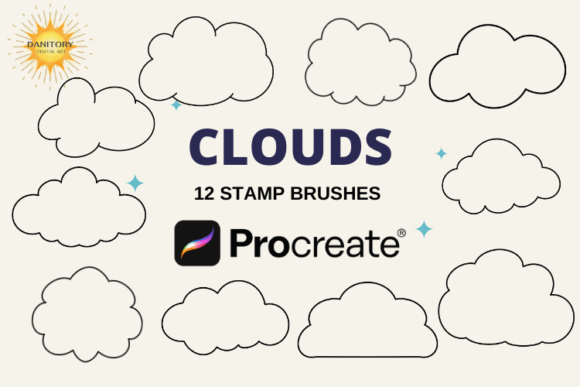
This article explores the value proposition of these 10 individual stamp brushes, how they fit into various creative workflows, and provides a step-by-step guide on installation and usage. By understanding the mechanics behind stamp brushes, you can elevate your digital illustrations, stationery designs, and web graphics from simple sketches to polished, professional assets.
What Are Procreate Stamp Brushes?
To understand the power of the Cloud Stamp Brush Set, it is essential first to define what a "stamp brush" is within the context of Procreate. Unlike traditional brushes that simulate the texture of paint, pencil, or charcoal by reacting to pressure and angle, a stamp brush is a pre-defined image that is placed onto the canvas when tapped. Think of it as a digital sticker or a clip-art element, but with the added flexibility of being integrated directly into your brush palette.
The primary advantage of using stamp brushes over standard image layers is speed and consistency. When you need to create a background pattern, add decorative borders to an Instagram post, or illustrate a weather-themed blog button, manually drawing clouds every time is time-consuming and often results in inconsistent styles. With a set of 10 distinct cloud stamps, you can achieve a cohesive look across multiple projects instantly. These brushes allow for immediate scalability, meaning you can resize the cloud from a tiny accent to a dominant background feature without losing quality, provided you are working with vector-based or high-resolution raster images.
The Versatility of Cloud Imagery in Design
Why clouds? While they may seem like a niche subject, clouds are versatile symbols used across numerous industries. In graphic design, they often represent ideas, dreams, or sky-related themes. In stationery and printable art, fluffy white clouds evoke feelings of calmness, innocence, and whimsy, making them popular for baby showers, nursery decor, and greeting cards. For surface patterns and packaging, repeating cloud motifs can create a serene, organic texture that appeals to consumers looking for natural or soothing aesthetics.
Furthermore, in the realm of digital content creation, clouds serve as excellent compositional elements. They can fill negative space, balance a layout, or simply add depth to a flat illustration. The 10-cloud set typically includes variations in density, shape, and lighting, giving you the freedom to mix and match to create realistic skies or stylized, cartoonish environments.
Who Benefits From This Tool?
The utility of the Procreate Cloud Stamp Brush Set extends far beyond just illustrators. Here is how different professionals and creators can leverage this resource:
- Graphic Designers: Speed up the prototyping phase of projects involving sky backgrounds or atmospheric effects.
- Print-on-Demand Sellers: Create unique designs for wall art, mugs, and t-shirts quickly. Since these are digital assets, you can scale them infinitely for different print sizes.
- Social Media Managers: Enhance Instagram posts and blog buttons with consistent, branded visual elements without needing extensive drawing skills.
- Educators and Students: Use these brushes to create engaging educational materials, such as worksheets about weather or geography, making learning visually appealing.
- Hobbyists: Experiment with digital art in a low-pressure environment. Stamps remove the fear of the blank canvas, allowing beginners to focus on composition and color theory.
How to Install and Set Up Your Brush Set
One of the most common barriers to adopting new digital tools is the technical setup process. Fortunately, importing brushes into Procreate is straightforward once you know the steps. Below is a detailed guide to ensure a smooth installation experience on your iPad.
Step-by-Step Installation Guide
- Download the File: Ensure you have downloaded the brush set file (usually a .brushset file) to a folder on your iPad, such as the Files app.
- Navigate to the Folder: Open the "Files" application on your iPad and locate the folder containing your downloaded brush set.
- Initiate Share Action: Tap and hold the .brushset file with your finger or Apple Pencil. A context menu will appear.
- Select "Share": From the pop-up menu, choose the "Share" option. If you do not see "Open in Procreate" immediately, tap on "More..." at the bottom of the share sheet to reveal additional apps.
- Choose Procreate: Scroll through the list of available apps until you find the Procreate icon. Tap it to proceed.
- Automatic Import: Procreate will open automatically and prompt you to import the brushes. Confirm the action, and the 10 cloud stamps will be added to your current brush library under a new group.
Note: If the automatic import fails, ensure that Procreate is updated to the latest version, as older versions may have compatibility issues with newer brush formats.
Maximizing Creativity with Stamp Brushes
Once installed, the real magic begins. Many beginners treat stamp brushes as static images, but Procreate offers robust editing capabilities that transform them into dynamic tools.
Customization Options
After placing a cloud stamp on your canvas, you are not locked into its default appearance. You can manipulate several parameters to suit your design needs:
- Scale and Resize: Use two fingers to pinch and zoom, resizing the cloud to fit perfectly within your composition. This is particularly useful for creating depth; smaller clouds in the distance and larger ones in the foreground.
- Opacity Adjustments: Lowering the opacity allows you to layer clouds subtly, creating a misty or ethereal effect rather than a stark, opaque shape.
- Color Tinting: Procreate’s color adjustment features allow you to tint the stamp. If you are designing a sunset scene, you can change the white clouds to shades of orange, pink, and purple, maintaining the original shape while altering the mood.
- Rotation: Rotate the stamp to break symmetry and create more natural-looking arrangements.
Practical Applications in Modern Workflows
Consider a scenario where you are designing a series of Instagram stories for a wellness brand. Instead of spending hours drawing each background, you can use the cloud stamps to create a calming sky backdrop. By adjusting the opacity and adding a soft gradient overlay, you achieve a professional look in minutes. Similarly, for business cards, a subtle cloud watermark can add a touch of elegance without distracting from the contact information.
Another common misconception is that stamp brushes lack artistic integrity. However, skilled designers use stamps as foundational elements, building upon them with hand-drawn details, textures, and colors. The brush set serves as a starting point, not a crutch. It accelerates the repetitive tasks, freeing up mental energy for creative decision-making and conceptual development.
Troubleshooting Common Issues
Even with a user-friendly interface, users may encounter minor hiccups. If your brushes do not appear after installation, check the following:
- Brush Group Visibility: Ensure you have selected the correct brush group in the Procreate brush library. The new clouds might be in a newly created folder named after the file.
- File Format: Verify that the file is indeed a .brushset file. Other formats like PNG or JPG will not import correctly as brushes.
- iOS Version Compatibility: Ensure your iPadOS and Procreate are up to date. Older operating systems may not support the latest brush engine features.
Conclusion
The Procreate Cloud Stamp Brush Set is more than just a collection of digital images; it is a productivity multiplier for creators. By understanding how to install, customize, and integrate these tools into your workflow, you can produce higher quality work in less time. Whether you are designing printable stationery, crafting social media content, or illustrating children's books, these 10 versatile cloud stamps offer endless possibilities. Embrace the technology, experiment with the settings, and let your creativity soar—much like the clouds themselves.